
Download Xilisoft HD Converter – free HD video conversion tool for Windows & Mac
Overview
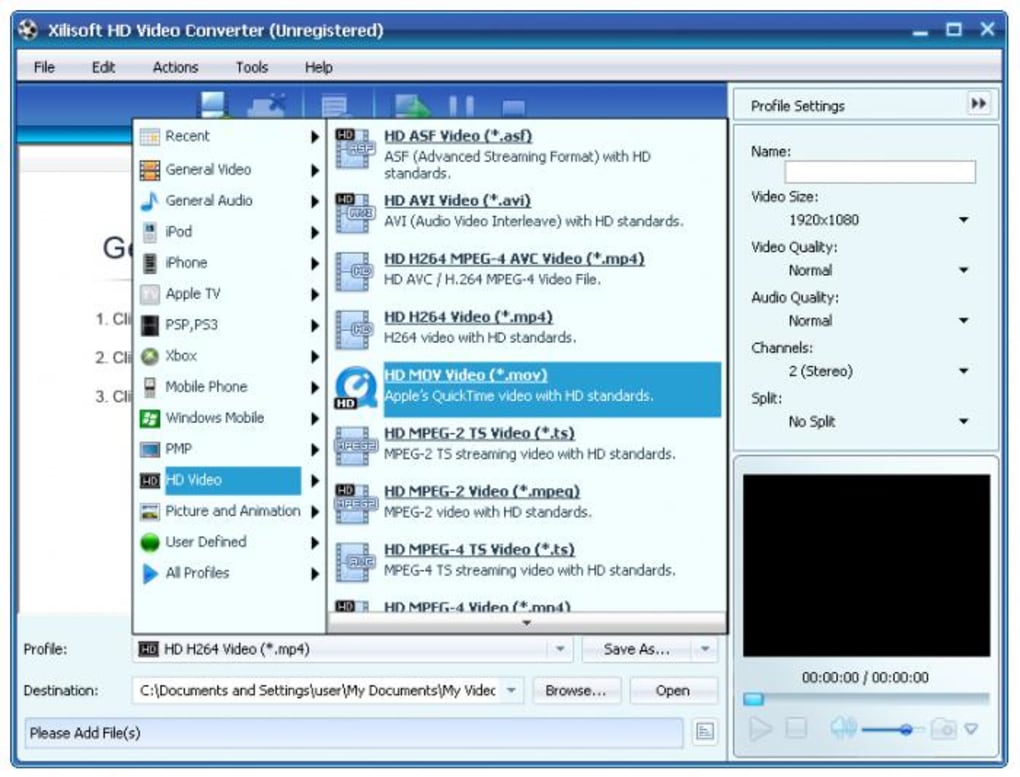
Xilisoft HD Converter is a handy video‑conversion utility designed specifically for the growing demand of high‑definition media. In an era where 1080p and even 4K playback devices dominate the market, users need a reliable tool that can transform source files into formats that match their TV, gaming console, or mobile device. Xilisoft answers that call by supporting a broad spectrum of video containers—from classic MPG, AVI, and WMV to modern, device‑specific profiles for iPod, iPhone, PSP, PS3, and Xbox. The interface revolves around a simple drop‑down list that presents each supported format as a ready‑to‑use profile, allowing beginners to start converting with a single click. For power users, the software offers a “Custom Profile” option where you can fine‑tune video resolution, bitrate, audio codec, and subtitle handling. An integrated preview player lets you watch a short clip of the source video before committing to conversion, ensuring you select the optimal settings. While the program has earned praise for being one of the first converters that handles HD content efficiently, early releases suffered occasional crashes during intensive batch conversions. The development team has released patches to improve stability, but users should still keep an eye on updates for the best experience. Overall, Xilisoft HD Converter delivers a balanced mix of ease‑of‑use, format versatility, and HD‑focused features that make it a solid candidate for anyone looking to digitize their movie library or prepare videos for playback on a new device.
Core Features That Make Xilisoft HD Converter Stand Out
- Extensive HD support – convert 720p, 1080p and up to 4K videos without quality loss.
- Pre‑defined device profiles – iPod, iPhone, iPad, Android, PSP, PS3, Xbox, Windows Phone and more.
- Custom profile builder – adjust resolution, frame rate, bitrate, audio codec, channel layout and subtitle options.
- Built‑in video preview – watch a short segment of the source file before conversion to verify settings.
- Batch processing – queue multiple files and let the software convert them sequentially.
- Fast hardware acceleration – utilizes GPU (when available) to speed up HD transcoding.
- Simple drag‑and‑drop interface – add files directly from Windows Explorer or macOS Finder.
- Audio extraction – pull MP3, AAC, or WAV tracks from video files for podcast or music use.
- Subtitle integration – embed or externalize SRT, SUB and ASS subtitle files.
- Regular updates – the developer releases patches to add new codecs and improve stability.
Step‑by‑Step Installation and How to Use the Converter
Windows Installation (Windows 10/11, 64‑bit)
1. Download the installer from the official Xilisoft website. The file is typically named XilisoftHDConverterSetup.exe.
2. Double‑click the installer and accept the license agreement. Choose the default installation folder (C:\Program Files\Xilisoft\HD Converter) unless you have a specific location in mind.
3. During the setup, you may be prompted to install additional codec packs. Accept these to ensure maximum compatibility with obscure video formats.
4. Click “Install” and wait for the progress bar to complete. When finished, launch the application from the Start menu or desktop shortcut.
5. Upon first launch, Xilisoft will perform a quick check for updates. Accept any recommended updates to guarantee you have the latest stability fixes.
macOS Installation (macOS 12 Monterey and later)
1. Download the DMG file, usually called XilisoftHDConverter.dmg.
2. Open the DMG and drag the Xilisoft HD Converter icon into your Applications folder.
3. macOS may block the app because it is from an unidentified developer. To bypass this, go to System Preferences → Security & Privacy → General and click “Open Anyway.”
4. Launch the program from the Applications folder. The first run will trigger an automatic update check – install any available patches.
5. Grant the app permission to access your media folders when prompted; this ensures smooth file import and export.
Basic Conversion Workflow (All Platforms)
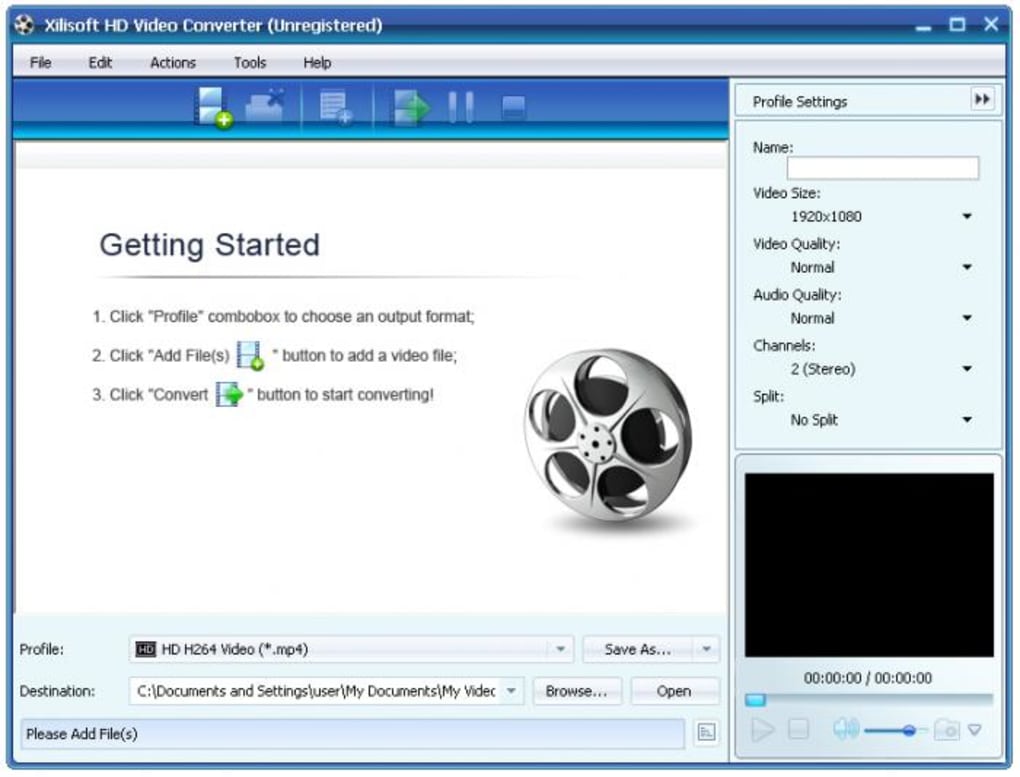
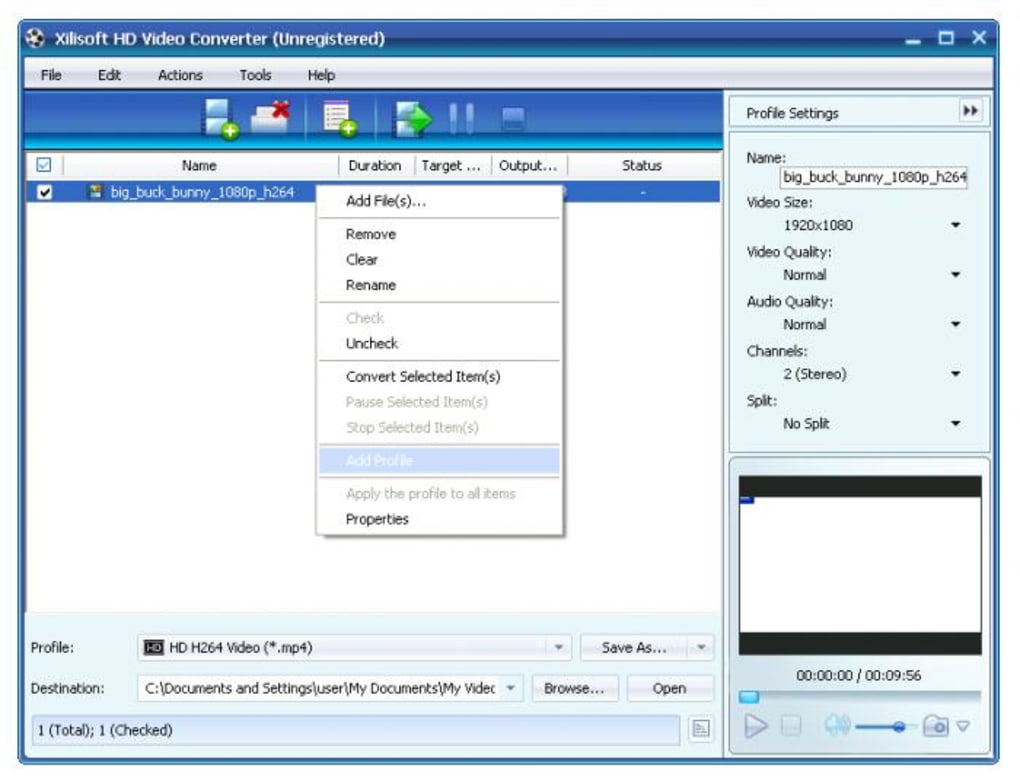
After installation, using Xilisoft HD Converter follows a straightforward three‑step process. First, import your source video by clicking the “Add File” button or by dragging the file onto the main window. Second, choose a target format from the drop‑down list; for HD content, the “HD 1080p MP4 (iPhone/Android)” profile is a popular choice. If you need custom settings, click “Edit Profile” to adjust resolution, bitrate, and audio parameters. Third, specify an output folder and press “Convert.” The progress bar will display real‑time status, and you can pause or cancel the job at any point. Once finished, the converted file appears in the destination folder ready for playback on your chosen device. For batch conversions, simply add multiple files and assign a single profile; Xilisoft will process them sequentially, freeing you to work on other tasks.
System Compatibility, Pros and Cons
Xilisoft HD Converter is built to run on the most common desktop operating systems. The official builds support:
- Windows 10 (64‑bit) and Windows 11
- macOS 12 Monterey, macOS 13 Ventura, and later
The software does not offer native Linux binaries, but advanced users can run the Windows version through Wine or a virtual machine. Minimum system requirements include a dual‑core processor, 2 GB RAM (4 GB recommended for HD conversion), and at least 200 MB of free disk space for installation. For optimal performance with 1080p or higher videos, a dedicated GPU with OpenCL or CUDA support is advisable.
Pros
- Strong focus on HD and 4K video conversion without noticeable quality degradation.
- Intuitive UI with pre‑set device profiles makes it easy for beginners.
- Custom profile editor provides granular control for advanced users.
- Built‑in preview player eliminates the guesswork before conversion.
- Batch processing saves time when handling large media libraries.
- Hardware acceleration reduces conversion time on modern GPUs.
Cons
- Occasional stability issues reported during lengthy batch conversions.
- No native Linux version limits adoption among open‑source enthusiasts.
- Free version places a watermark on the output video and limits batch size.
- Interface feels a bit dated compared with newer, more minimalist converters.
- Customer support response time can be slow during peak periods.
Frequently Asked Questions & Final Verdict – Should You Download Xilisoft HD Converter?
Is Xilisoft HD Converter free or do I need to purchase a license?
The software offers a fully functional trial that adds a small watermark to the output files. To remove the watermark and unlock unlimited batch processing, you need to buy a license – usually a one‑time payment with optional yearly updates.
Can I convert 4K videos with this tool?
Yes. Xilisoft HD Converter supports 4K (3840×2160) source files and can output them in compatible formats such as MP4 (H.264/H.265) or MKV, provided your hardware meets the required processing power.
Does the program run on macOS Silicon (M1/M2) chips?
The latest macOS build runs under Rosetta 2 on Apple Silicon, delivering acceptable performance. The developer has announced a native M‑series version in the roadmap, but it is not yet released.
How does Xilisoft handle subtitle tracks?
You can either embed subtitles directly into the video stream or keep them as external files (SRT, ASS, SUB). The custom profile editor lets you select the desired subtitle handling method before conversion.
Is there a limit to the number of files I can convert at once?
The free trial limits batch size to three files per session. The licensed version removes this restriction, allowing you to queue as many files as your hardware can handle.
Bottom line: If you need a reliable converter that treats HD and 4K content with respect, Xilisoft HD Converter is a solid pick. Its extensive device profiles, built‑in preview player, and hardware acceleration give it an edge over many generic converters. The occasional crashes reported in earlier builds are less common after recent patches, but they remain a consideration for users who frequently run massive batch jobs. For casual users who convert a few videos each week, the free trial offers enough functionality to test the workflow. Power users who demand stability, no watermarks, and native Apple‑Silicon support may want to keep an eye on upcoming updates or explore alternative premium tools. Overall, the balance of features versus price makes Xilisoft HD Converter worth downloading – especially if you’re looking for a straightforward solution that doesn’t sacrifice HD quality.
Xilisoft HD Converter delivers a comprehensive set of HD‑focused features wrapped in an easy‑to‑use interface. While stability could be better during very large batch operations, the software’s ability to handle 1080p and 4K files, combined with custom profiling and GPU acceleration, makes it a valuable addition to any media‑conversion toolbox.







